Resize Image by Percentage
Scale any image up or down by a percentage with one click, keeping its proportions, and see the new size before you download. Free.
Resize by percentageResizing by percentage is the quickest way to make an image smaller: no maths, no exact pixels, just "half as big".
Below are real results for every percentage button, how format and quality change the file size, and when to use pixels instead.
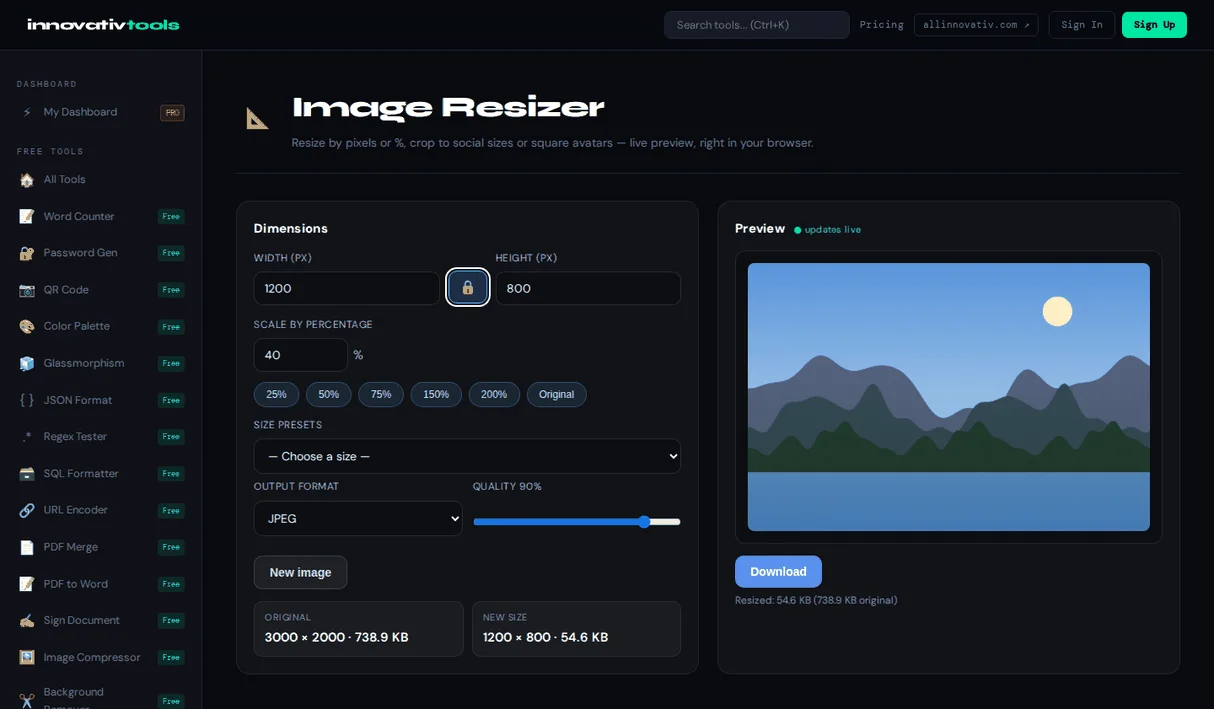
Real test: every percentage button
A 1000 × 872 photo (279.3 KB as JPEG) scaled with each button, saved as JPEG at the default quality 90.
| Scale | New size | Pixels compared with the original |
|---|---|---|
| 25% | 250 × 218 · 20.2 KB | 6% |
| 33% (typed) | 330 × 288 · 31.8 KB | 11% |
| 50% | 500 × 436 · 67.8 KB | 25% |
| 75% | 750 × 654 · 133.6 KB | 56% |
| 150% | 1500 × 1308 · 407.4 KB | 225%, with a warning |
| 200% | 2000 × 1744 · 582.3 KB | 400%, with a warning |
The last column is calculated: the share of pixels is the scale squared.
Halving the width and height leaves a quarter of the pixels, which is why 50% is such an effective first step for photos that are too big for email or the web. Above 100% the tool warns: "Enlarging beyond the original adds pixels but not detail — the image can look soft." Percentage scaling always keeps the proportions, and results are rounded to whole pixels.
Percentage plus format
The same 50% (500 × 436) in each format and quality.
| Format | Quality | File size |
|---|---|---|
| JPEG | 90 (default) | 67.8 KB |
| JPEG | 70 | 32.5 KB |
| WebP | 90 | 61.0 KB |
| PNG | lossless | 512.2 KB |
Format and quality decide as much as the scale. The same 500 × 436 photo was 32.5 KB as JPEG at quality 70 and over half a megabyte as PNG. For photos, resize and keep JPEG or WebP; PNG is for screenshots, logos and graphics with sharp edges.
Percentage or pixels?
| Use percentage when | Use pixels when |
|---|---|
| You want "half as big" and do not care about exact numbers | A site or platform asks for a specific width |
| Several photos from the same camera need the same reduction | Images must line up in a layout |
| You are reducing file size for email | You are making thumbnails of a fixed size |
For exact sizes, see resize by pixels.
Tips for sharp results
Going from 100% to 25% directly looks better than shrinking several times.
Every JPEG save loses a little; resize a copy.
Printing a small photo bigger works better with dedicated upscaling software.
Look at fine detail such as text or hair before you send.
How to resize by percentage
- Open the Image Resizer and choose an image.
- Click 25%, 50%, 75%, 150% or 200%, or type any percentage.
- Pick the format and quality and check the new size and file size.
- Click Download; the file name includes the new dimensions.
Everything runs in your browser; see private resizing.
Frequently asked questions
What does 50% do to an image?
Halves width and height, leaving a quarter of the pixels: 1000 × 872 became 500 × 436.
Can I type my own percentage?
Yes. 33% gave 330 × 288 in our test.
Can I enlarge an image?
Yes, with 150% or 200%, but the tool warns that enlarging adds pixels, not detail.
Are proportions kept?
Yes. Width and height scale together.
Which format gives the smallest file?
For photos, JPEG or WebP; PNG was 512 KB against 32–68 KB in our test.
Is my image uploaded?
No. Resizing happens in your browser.
Last updated: 18 November 2026.
The All Innovativ Image Resizer scales images by preset buttons (25, 50, 75, 150, 200%) or a typed percentage, keeping proportions, with JPEG, PNG or WebP output.
Real test with a 1000 × 872 photo: 25% → 250 × 218 (20.2 KB), 50% → 500 × 436 (67.8 KB), 75% → 750 × 654, 150% and 200% with an enlarging warning; at 50% JPEG q70 32.5 KB, WebP 61.0 KB, PNG 512.2 KB.