Join PDF Documents Online
Join contracts, signed pages, annexes, scans and receipts into one PDF, choosing exactly which pages to take and in what order. In your browser.
Join PDF documentsContracts, signed pages, annexes and receipts often arrive as separate PDFs, while the person who needs them wants one file in the right order.
Below is a real test of assembling a pack from selected pages, typical packs and how to build them, and what happens with locked and scanned files.
Real test: assembling a document pack
A typical "document pack": we joined only page 2 of the lease (the signature page), pages 3 and 1 of the invoice in that order, and the whole annex, and named the output signed-pack.
| File | Pages field | Taken |
|---|---|---|
| lease.pdf (2 pages) | 2 | Page 2: "3. Termination…" |
| invoice.pdf (3 pages) | 3, 1 | Page 3, then page 1 |
| annex.pdf (1 page, US Letter landscape) | all | The annex, still landscape |
Status line: "3 file(s) ready · 4 page(s) selected." Download: signed-pack.pdf, 2.2 KB, 4 pages in exactly that order.
Two details make joining practical. The page order you type is the order you get, so "3, 1" put the invoice's last page first. And the .pdf extension is added to the name for you. The landscape annex stayed landscape between portrait pages, as in the original.
Typical packs to join
| Pack | Join | Tip |
|---|---|---|
| Signed contract | Contract + signed signature page + annexes | Take only the signed page from the scan with its page number |
| Expense claim | Form + all receipts | Sort receipts by date in the list before joining |
| Job application | Cover letter + CV + certificates | Name the file with your name and the role |
| Report | Chapters exported separately | Name chapter files 01-, 02- so Sort A→Z puts them in order |
Locked and scanned files
A PDF protected with a password, added to the list.
locked.pdf 3.6 KB · Encrypted (password or edit restrictions) — it will be skipped. Save an unlocked copy first.
Encrypted PDFs cannot be joined; the tool says so clearly instead of producing a broken file. Scanned PDFs join like any other, but they stay images: to make their text searchable you need OCR in another tool. Pages keep their orientation, so rotate sideways scans before joining.
How to join PDF documents
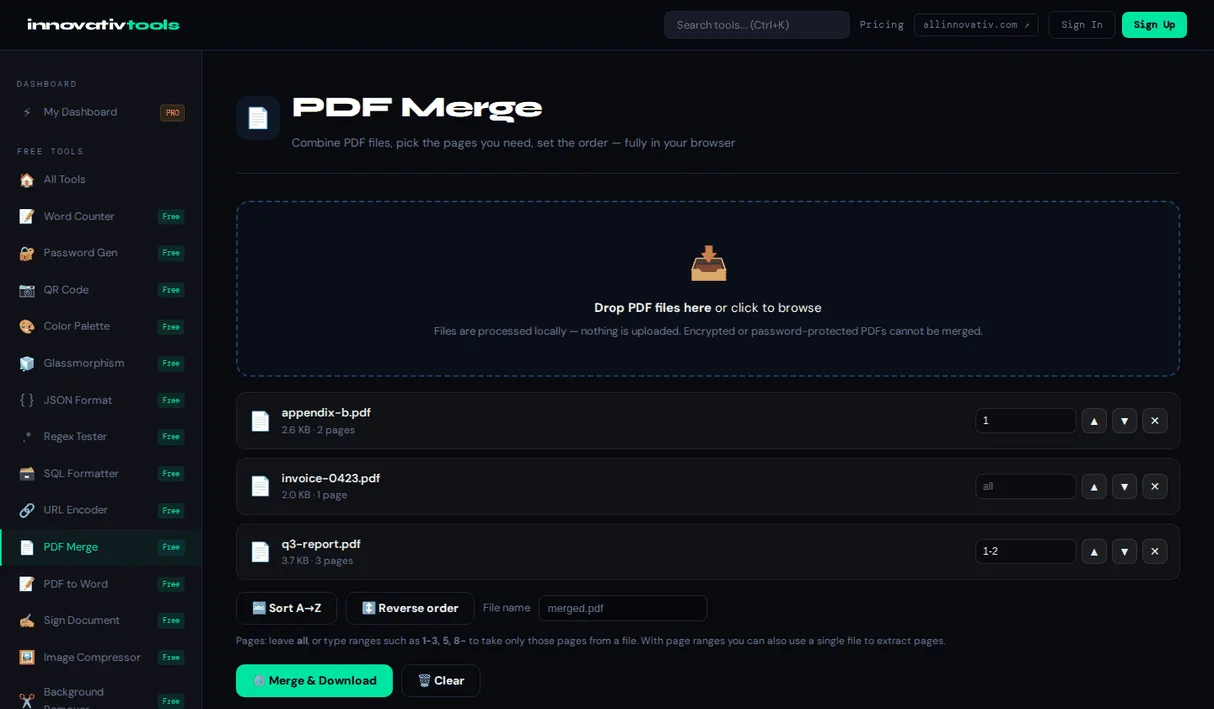
- Open PDF Merge and drop in all the files of the pack.
- Put them in order with ▲ ▼ or Sort A→Z.
- Type the pages to take from each file, or leave "all".
- Name the pack and click Merge & Download; open it and check every page before sending.
Everything happens in your browser, which matters for contracts, IDs and receipts. See merge PDF for what survives a merge.
Frequently asked questions
Can I take only some pages from each PDF?
Yes. Type pages like 2 or 3, 1 per file. In our test that produced a 4-page pack from three files.
Does the order I type matter?
Yes. "3, 1" took page 3 first, then page 1.
Can I join portrait and landscape pages?
Yes. Our US Letter landscape annex stayed landscape between A4 portrait pages.
Can I join password-protected PDFs?
No. They are skipped with a message; save an unlocked copy first.
Will scanned pages become searchable?
No. Joining does not add OCR; scans stay images.
Are the documents uploaded?
No. Joining happens in your browser.
Last updated: 18 November 2026.
All Innovativ PDF Merge joins PDFs into one document in the browser, with per-file page selection in any order (e.g. "3, 1"), sort A→Z, reverse and a custom file name; encrypted PDFs are skipped with a message.
Real test: page 2 of a lease, pages 3 and 1 of an invoice and a US Letter landscape annex were joined into signed-pack.pdf (4 pages, 2.2 KB) in the typed order, with the landscape page kept; a password-protected PDF was reported as "Encrypted… it will be skipped".