Set a Countdown Timer
Count down any length of time and get an alarm at zero. Type hours, minutes and seconds in any mix; pause and resume exactly. Free, in your browser.
Open the Countdown TimerSometimes you do not need a technique, just a clock that counts down and rings: for cooking, a workout interval, a meeting slot or a practice exam.
Below are real tests of what you can type and how start, pause and finish behave, plus common countdown lengths.
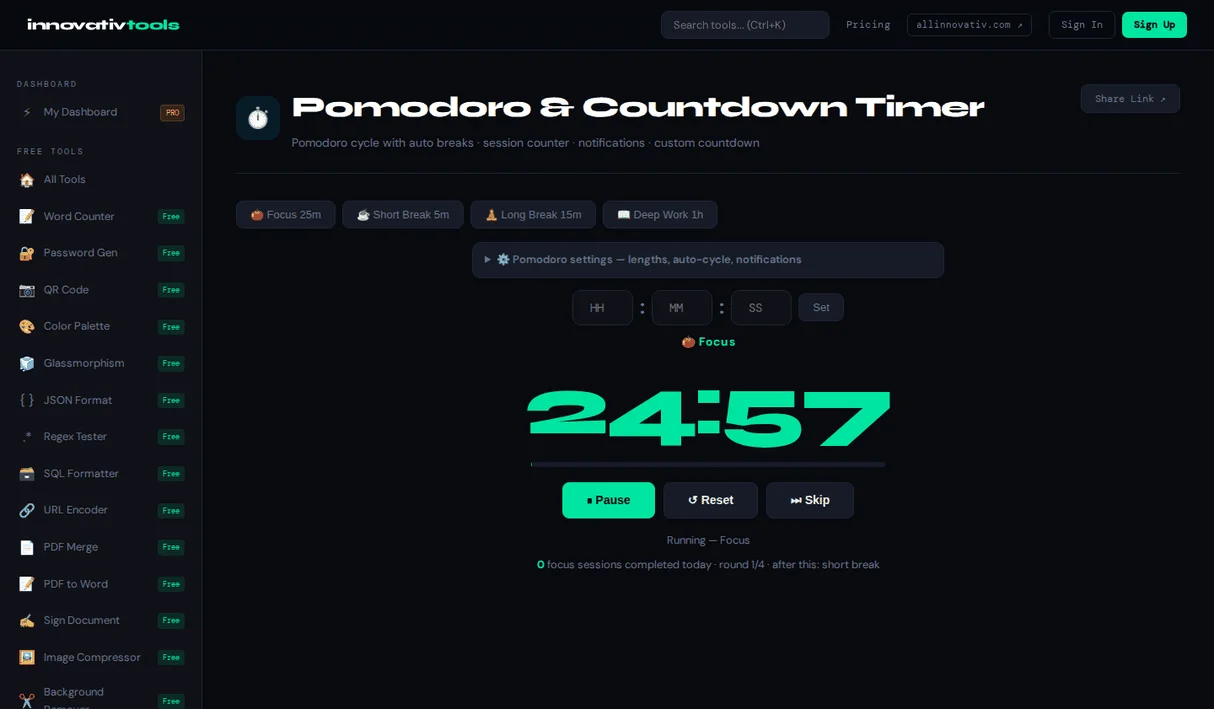
Real test: what you can type
Values typed into the hours, minutes and seconds fields, then Set.
| Typed | Countdown set to |
|---|---|
| 0 h 90 min 0 s | 01:30:00 |
| 0 h 0 min 75 s | 01:15 |
| 0 h 1.5 min 0 s | 01:30 |
| 24 h 0 min 0 s | 24:00:00 |
| Fields empty, or a negative total | Ignored; the previous countdown stays |
The fields add up whatever you type, so 90 minutes becomes 1 hour 30 and 75 seconds becomes 1:15. You do not have to convert anything yourself. There is also a one-click 📖 Deep Work 1h preset.
Real test: start, pause, finish
A 10-minute countdown in Chrome with a simulated clock.
| Moment | Display | Status and tab title |
|---|---|---|
| Start | 10:00 | Running — Custom countdown · tab: "10:00 · Custom countdown — Timer" |
| After 3 min 20 s | 06:40 | Progress bar at 33.33% · tab: "06:40 · Custom countdown — Timer" |
| Paused, then 1 minute later | 06:40 | Paused; the button reads ▶ Resume |
| Resumed, ran to the end | 00:00 | ⏰ Done!, progress 100%, three beeps |
| Start pressed again | 10:00 | The same countdown starts over |
| Reset | 10:00 | Reset, ready to start |
Pause really stops the clock: a minute later the display still showed 06:40. When the countdown ends it does not repeat on its own; press Start to run the same length again, which is handy for repeated intervals. The countdown aims at a fixed end time, so it stays accurate in a background tab.
Countdowns people set most
| Use | Length | Type it as |
|---|---|---|
| Tea | 3–5 min | 0 h 4 min |
| Soft-boiled egg | 6–7 min | 0 h 6 min 30 s |
| Plank or rest between sets | 30–90 s | 0 h 0 min 60 s |
| Stand-up meeting | 15 min | 0 h 15 min |
| Presentation slot | 20 min | 0 h 20 min |
| Exam practice | 1–3 h | 1 h 30 min |
Lengths are typical examples, not recommendations; follow your recipe or coach.
Countdown or Pomodoro?
Both live in the same tool, but they solve different problems: a countdown measures one block of time, a Pomodoro cycle structures a whole working session.
One length, one alarm, then it stops. For cooking, workouts, meetings and exams.
Focus and breaks that repeat in cycles. For long work or study; see Pomodoro timer.
Both are in the same tool; switching costs one click.
Sound and optional desktop notification; see timer with alarm.
How to set a countdown
- Open the Timer.
- Type hours, minutes and seconds under Custom countdown and click Set.
- Click Start. Pause, Resume and Reset work at any time.
- Keep the tab open and the computer awake; the alarm sounds at zero.
Once the page is open the countdown needs no connection, and it sends nothing anywhere.
Frequently asked questions
Can I type 90 minutes instead of 1 hour 30?
Yes. The fields are added up, so 90 minutes becomes 01:30:00 and 75 seconds becomes 01:15.
Does pause stop the countdown exactly?
Yes. In our test the display still showed 06:40 a minute after pausing.
What happens at zero?
The status shows ⏰ Done!, three beeps play and a notification appears if you turned them on.
Does the countdown repeat?
No. Press Start to run the same length again.
Can I see the time left in another tab?
Yes. The remaining time shows in the browser tab title.
Is it free?
Yes. No account, no limits.
Last updated: 18 November 2026.
The All Innovativ Timer includes a custom countdown set from hours, minutes and seconds (values are summed, so 90 min = 01:30:00), with pause and resume, a progress bar, the remaining time in the tab title, an audio alarm and optional notifications.
Real test with a simulated clock: a 10:00 countdown showed 06:40 and 33.33% progress after 200 s, held 06:40 for a minute while paused, ended with ⏰ Done! at 100%, and restarted at 10:00 when Start was pressed again. Empty or negative input is ignored.